How to Use Mochify via MCP: AI Agent Image Compression (2026)
Connect Mochify to Claude Desktop, Cursor, or any MCP-compatible assistant and compress images directly from a conversation. No browser tab, no manual settings - just describe what you want.
Published March 2026 by the Mochify Engineering Team. The Mochify MCP server exposes our squish engine as a callable tool for AI assistants. Same compression quality, zero-retention privacy - now accessible from inside your AI workflow.
What's in This Guide
30-second summary
The Mochify MCP server lets any MCP-compatible AI assistant - Claude, Cursor, or similar - compress and optimize images directly from a conversation. Describe what you want, and the assistant calls Mochify's squish engine with the right flags. No browser tab, no manual settings, no file management overhead.
What is the Mochify MCP server?
MCP (Model Context Protocol) is a standard that lets AI assistants call external tools and services mid-conversation. We've built a Mochify MCP server that exposes our squish engine as a callable tool - meaning any AI assistant with MCP support can compress, resize, and optimize your images on your behalf.
This is the agent-first version of Mochify. The same compression quality and zero-retention privacy you get from the web tool at mochify.app, accessed directly from your AI workflow without opening a browser.
How the MCP connection works
When you describe an image optimization task to your MCP-connected assistant, it parses your prompt and identifies the compression intent. It then calls the Mochify MCP server with the appropriate flags - type, resize dimensions, quality, EXIF handling - and returns the optimized file back into your workflow.
The flow looks like this:
- You describe the task in natural language to your AI assistant
- The assistant identifies it as an image compression job
- It calls the Mochify MCP tool with the right parameters
- Our squish engine processes the image in memory
- The optimized file is returned - no upload portal, no manual steps
The underlying engine is the same native C++ squish pipeline that powers the web tool. You're getting identical compression quality, just accessed from inside an AI agent context. (web.dev has a solid primer on why image optimization matters for Core Web Vitals if you want background on why this matters at scale.)
What the LLM controls: type, size, EXIF
The AI assistant connected via MCP makes the same decisions as the natural language feature on the web tool - but in an agentic, automated context. Here's exactly what it can set:
Output format
Based on your described use case, the model picks from WebP, AVIF, JPEG XL, or JPEG (jpegli). "Best for the web" leans WebP. "Smallest possible" picks AVIF, which at quality 60 produces files roughly 45% smaller than JPEG at quality 80. "Lossless" picks JPEG XL.
Resize and cropping
Dimension context ("Instagram square," "thumbnail banner," "half the size") maps to explicit --resize and crop flags. The model understands common publishing formats and translates them to pixel dimensions without you specifying numbers.
EXIF metadata stripping
Privacy-aware prompts ("strip location," "clean for public upload") enable metadata removal. Camera data, GPS coordinates, and device info are wiped before the file comes back.
How to connect Mochify via MCP
The Mochify CLI includes the MCP server. Install it, then point your client at it.
1. Install the CLI
macOS (Homebrew):
brew tap getmochify/mochify
brew install mochify
Linux / WSL:
# x86_64 (most Linux / WSL)
curl -L https://github.com/getmochify/mochify-cli/releases/latest/download/mochify-linux-x86_64 -o mochify
chmod +x mochify && sudo mv mochify /usr/local/bin/

# arm64 (Raspberry Pi, AWS Graviton, etc.)
curl -L https://github.com/getmochify/mochify-cli/releases/latest/download/mochify-linux-arm64 -o mochify
chmod +x mochify && sudo mv mochify /usr/local/bin/
All binaries are statically linked - no dependencies needed. Also available on the GitHub releases page.
2. Add to your MCP client config
For Claude Desktop, edit ~/Library/Application Support/Claude/claude_desktop_config.json:
{
  "mcpServers": {
    "mochify": {
      "command": "mochify",
      "args": ["serve"]
    }
  }
}
To unlock your plan's limits, authenticate once with a browser login:
mochify auth loginThis opens your browser, you sign in, and credentials are saved to ~/.config/mochify/credentials.toml. Both the CLI and the mochify serve MCP server pick them up automatically - no key to paste into your config. (MOCHIFY_API_KEY still works as an optional environment-variable override, but mochify auth login is the standard path.)
Restart Claude Desktop after saving. The Mochify squish tool will appear in your assistant's available functions - test it with: "Compress this image as a WebP for the web."
Hosted MCP: zero-install, any AI client
The Mochify MCP server is also available as a hosted HTTP endpoint at https://mcp.mochify.app. No binary to install, no Rust toolchain, no config file - paste the URL, authorize your account, and the squish tool appears in your AI assistant instantly.
One behavioral note specific to the hosted server: it returns the compressed image as a short-lived download URL on files.mochify.app (about a five-minute window), not as inline binary. Your original is still processed in RAM and discarded immediately; only the compressed output sits briefly in a pickup store so the link can resolve. The local CLI never uses that pickup store - it writes results straight to disk.
| Hosted MCP (mcp.mochify.app) | Local CLI MCP (stdio) | |
|---|---|---|
| Setup | Paste a URL, click Authorize | Install CLI, edit config file |
| Works in Claude.ai web | Yes | No (desktop only) |
| Works in Claude Desktop | Yes | Yes |
| Works in Gemini / Cursor / Windsurf | Yes (remote MCP URL) | Varies by client |
| Image source | Public URLs (agent fetches) | Local files + public URLs |
| Auth | OAuth 2.0 (one-click) | Optional API key via env var |
| Can run simultaneously | Yes | Yes |
Claude.ai web (claude.ai)
In Claude.ai, go to Settings → Integrations and add a new integration with the URL:
https://mcp.mochify.appClaude will redirect you to Mochify to sign in and authorize. After that, just tell Claude to compress an image by URL and it will call the squish tool automatically.
Claude Desktop (remote server)
Add a remote entry to your Claude Desktop config alongside any local servers you already have:
{
  "mcpServers": {
    "mochify-hosted": {
      "type": "http",
      "url": "https://mcp.mochify.app/mcp"
    }
  }
}
Claude Desktop will walk you through the OAuth flow the first time it connects. You can run both this remote entry and the local mochify serve entry at the same time - they use independent tokens.
Gemini, Cursor, Windsurf, and other MCP clients
Any client that supports remote MCP servers (HTTP+SSE or Streamable HTTP transport) works with the hosted endpoint. Add https://mcp.mochify.app/mcp as the server URL and follow the client's OAuth prompt.
Smithery & Glama
Mochify is listed on Smithery and Glama - MCP registries and marketplaces where you can discover and install MCP tools with a single click. Search for "Mochify" to add the hosted server directly from the registry without touching any config file.
Example: compressing images from a prompt
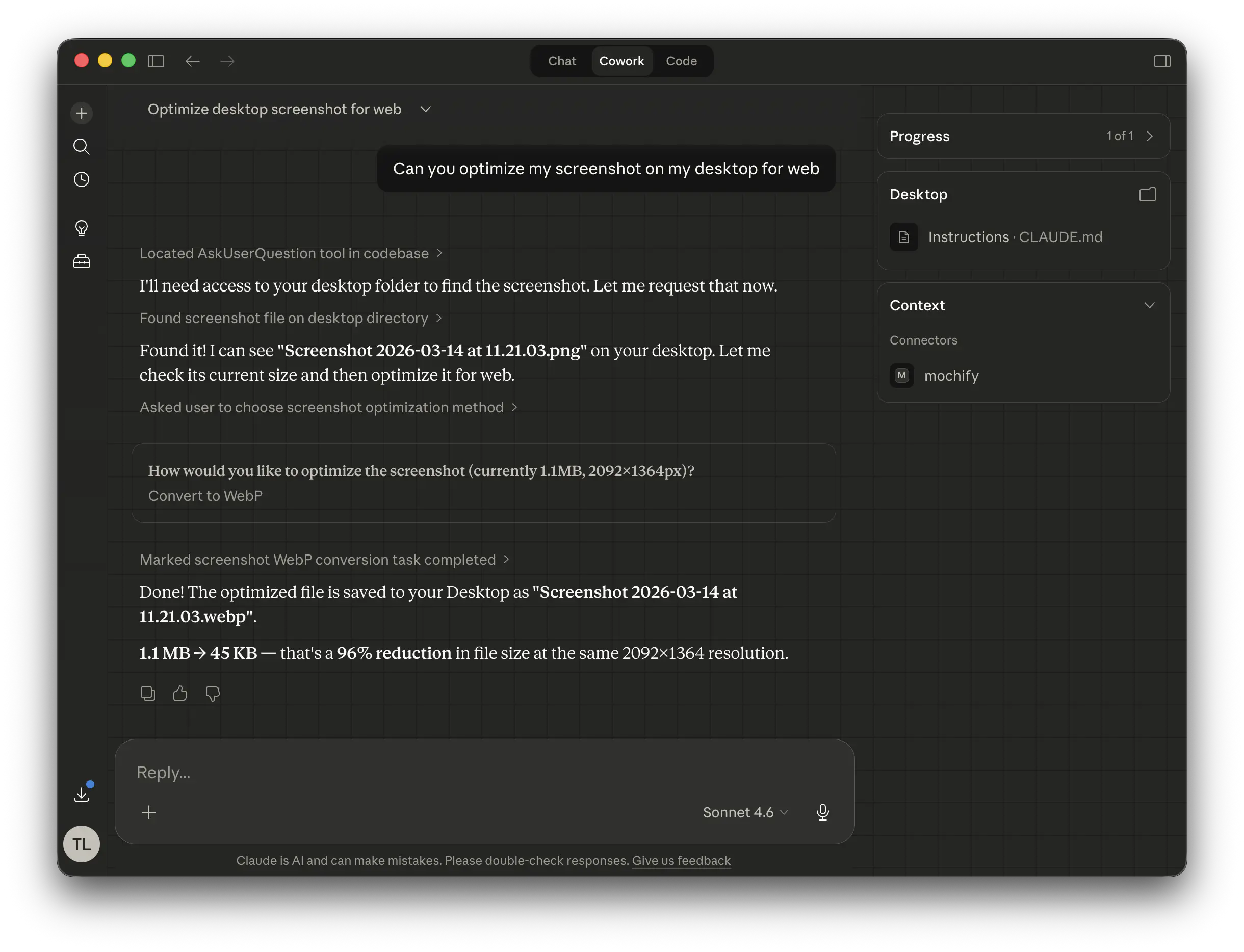
Say you're working in Claude Desktop and you say:
"Can you compress this product photo as an Instagram-ready WebP and strip the EXIF data?"
Behind the scenes, the assistant calls Mochify's MCP server with roughly:
--type webp--resize 1080x1080--strip-exif
The result comes back in seconds - a web-optimized 1080×1080 WebP with no metadata attached. You didn't touch a settings panel or look up Instagram's recommended dimensions. The agent handled the full decision chain.
MCP vs. the web tool: when to use each
Both options use the same squish engine and deliver the same output quality. The difference is workflow fit.
| Web tool (mochify.app) | MCP server | |
|---|---|---|
| Best for | One-off compression, quick jobs | Automated workflows, agent pipelines |
| Interface | Browser, natural language field | AI assistant (Claude, Cursor, etc.) |
| Setup required | None | MCP client configuration |
| Batch handling | Up to 25 files | Depends on agent implementation |
| Privacy | Zero-retention, in-memory | Zero-retention, in-memory |
| Format support | WebP, AVIF, JXL, JPEG | WebP, AVIF, JXL, JPEG |
If you're optimizing images as part of a larger agent workflow - content pipelines, automated publishing, code-adjacent tasks - MCP is the right path. For quick, individual jobs, the web tool is faster to reach. If you're working in Claude Code specifically, see our guide to image compression inside Claude Code for the setup and workflows.
The same MCP connection isn't limited to image compression, either. It can also handle PDFs in an AI agent workflow - extracting pages, splitting documents, and converting them alongside your image jobs.
Cheat sheet: prompt-to-flag mapping
| Prompt | Format | Resize | EXIF strip |
|---|---|---|---|
| "Instagram square" | WebP | 1080×1080 | Optional |
| "Smallest possible, mobile" | AVIF | ~800px | No |
| "Blog hero, fast loading" | WebP | ~1200px | No |
| "Archive, no quality loss" | JPEG XL | Original | No |
| "Clean for public upload" | WebP | Optional | Yes |
| "Email thumbnail" | JPEG (jpegli) | ~600px | Yes |
FAQ
What is an MCP server?
Which AI assistants support MCP?
Is image compression via MCP as good as the web tool?
Does using MCP mean my images are stored?
mochify serve skip that pickup store entirely and write the compressed bytes straight to your disk. Originals are never retained on any path.Can I use MCP for batch jobs?
What formats does the MCP server support?
How does this differ from the natural language feature on the homepage?
Do I need to install anything to use the hosted MCP?
https://mcp.mochify.app runs in the cloud. Add the URL in your AI client's settings and authorize your Mochify account - that's it. You only need to install the CLI if you want to process local files via stdio.Can I use Mochify MCP from Claude.ai in my browser?
https://mcp.mochify.app, and authorize. The local CLI MCP is not available on the web - it only runs in Claude Desktop and similar native clients.Can I run both the hosted and local MCP at the same time?
Does the hosted MCP work with Gemini, Cursor, or Windsurf?
https://mcp.mochify.app/mcp as the server URL in your client's MCP settings and follow the OAuth prompt. Mochify is also listed on Smithery and Glama if your client supports registry-based discovery.Related Guides
- How to Self-Host an Image Optimization API with Docker : Full control, local deployment.
- The 2026 Guide to Next-Gen Formats: WebP, AVIF, and JPEG XL : Format benchmarks and use cases.
- Privacy & Image Optimization: A Comprehensive Guide (2026) : Zero-retention explained in depth.
- The Risks of EXIF Data in Image Compression (2026) : Why metadata stripping matters.
- AI Image Compression and Conversion: Describe the Result, Skip the Settings : Prompt-driven image compression and conversion in one natural-language step.
- LLM Image Token Costs: How Many Tokens Does an Image Use? : Cut LLM image token costs by compressing before you send images to a model.
Try it without MCP - just describe what you need
No account. No dropdowns. The natural language feature on the web tool works the same way - type your goal, upload your image, done.
Start Optimizing Free