Convert any image in one right-click
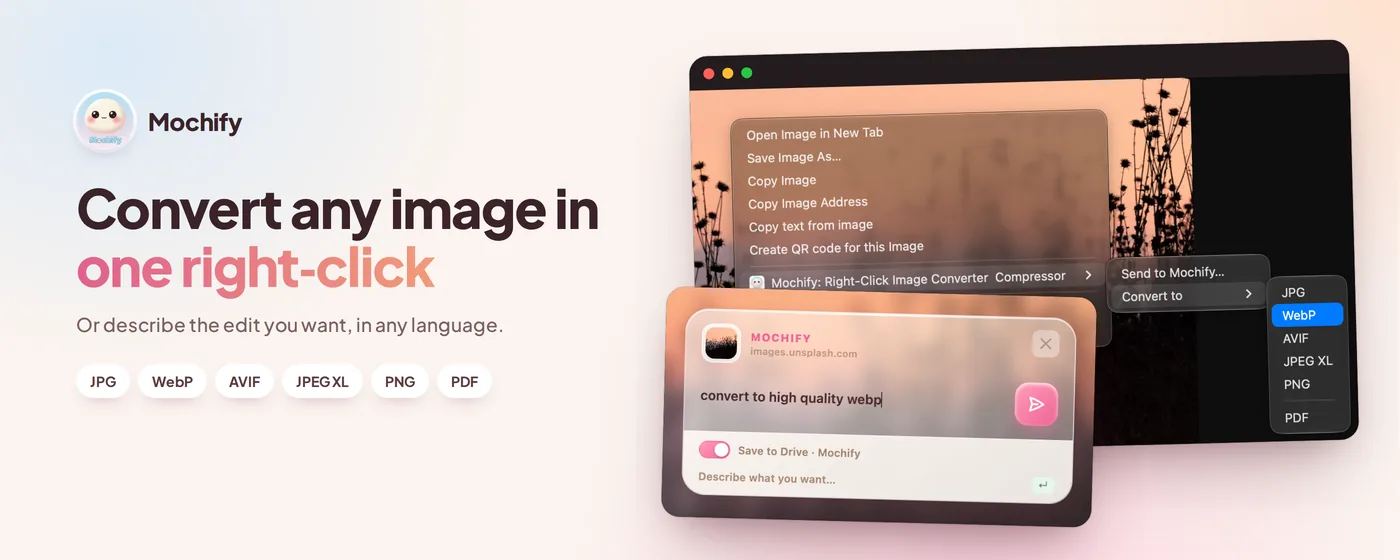
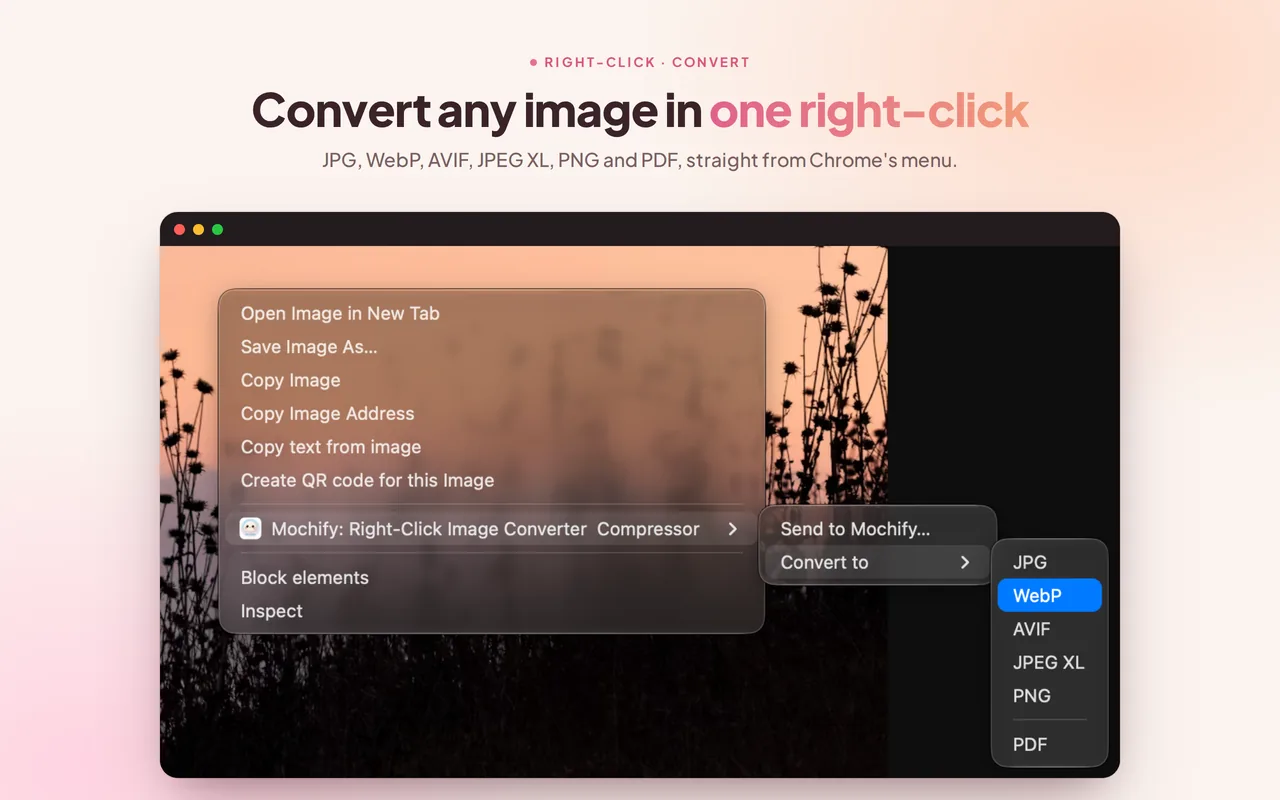
The Mochify Chrome extension adds two options to the right-click menu on every image you see on the web. Convert to gives you a one-click format change. Send to Mochify... lets you describe the edit you want in plain English. Either way, the result lands in your Downloads folder, or in Google Drive on a paid plan.
Free to start: 3 images with no account, 25 a month with a free one. Open source under the MIT license. Processed in memory and wiped as soon as the job finishes.
Two ways to use it
Convert to: one click, no typing
Right-click an image, choose Convert to and pick a format: JPG, WebP, AVIF, JPEG XL or PNG, or a one-page PDF of the image. The format is the whole instruction, so nothing is parsed and nothing is asked. Quality stays on auto and nothing is resized. The file saves straight to your Downloads folder with the same name and the new extension.
Send to Mochify: describe the edit you want
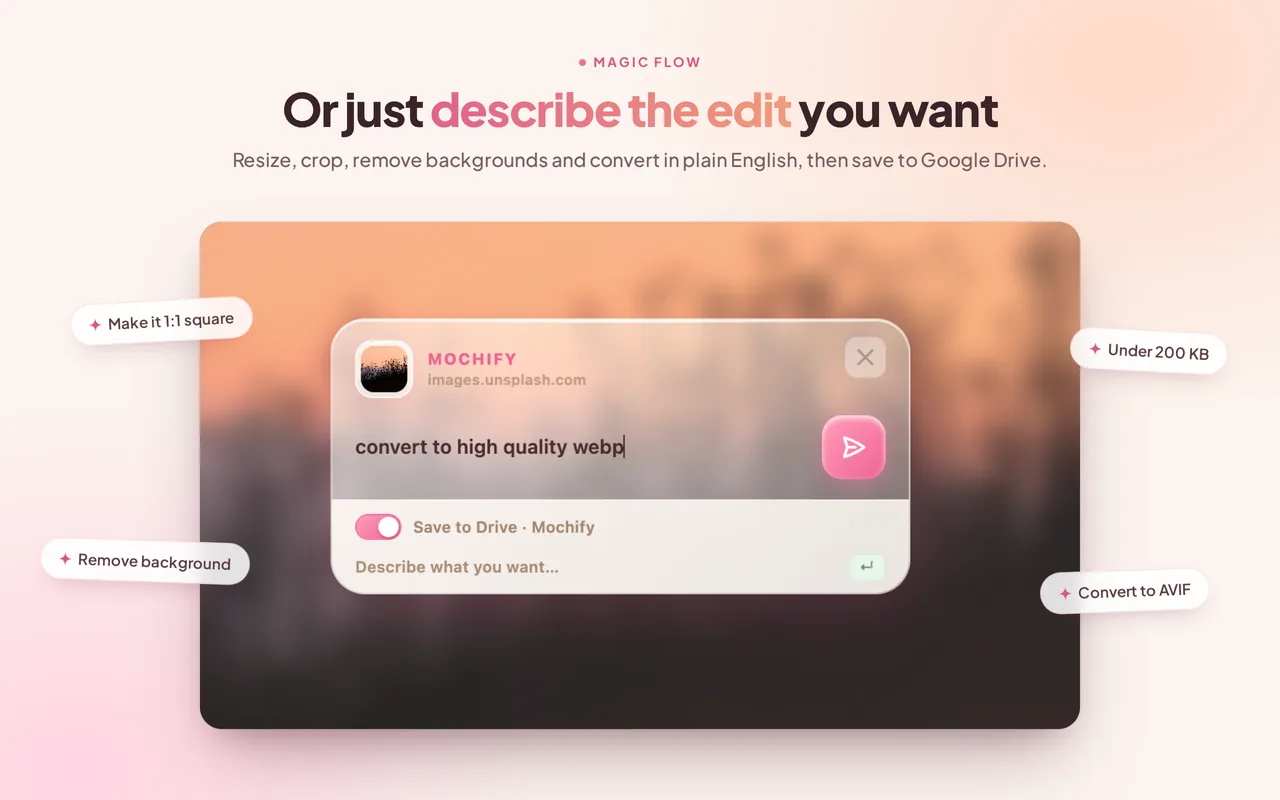
Need more than a format change? Choose Send to Mochify... and a small panel opens on the page. Type what you want in plain English:
- "Make it 1:1 square, remove the background, convert to AVIF"
- "Resize to 1200px wide"
- "Make the background white"
- "Convert to high quality WebP"
Magic Flow reads the request and does it in one pass. There are no settings panels and no quality sliders to work through. Ask for more than one output, for example "AVIF, WebP and JPG", and the files come back together in a zip.
What it can do
Everything Magic Flow does on the web app, on the image you right-click:
- Convert between JPG, WebP, AVIF, JPEG XL and PNG, or save the image as a one-page PDF
- Resize, crop (including a smart crop that keeps the subject in frame) and rotate
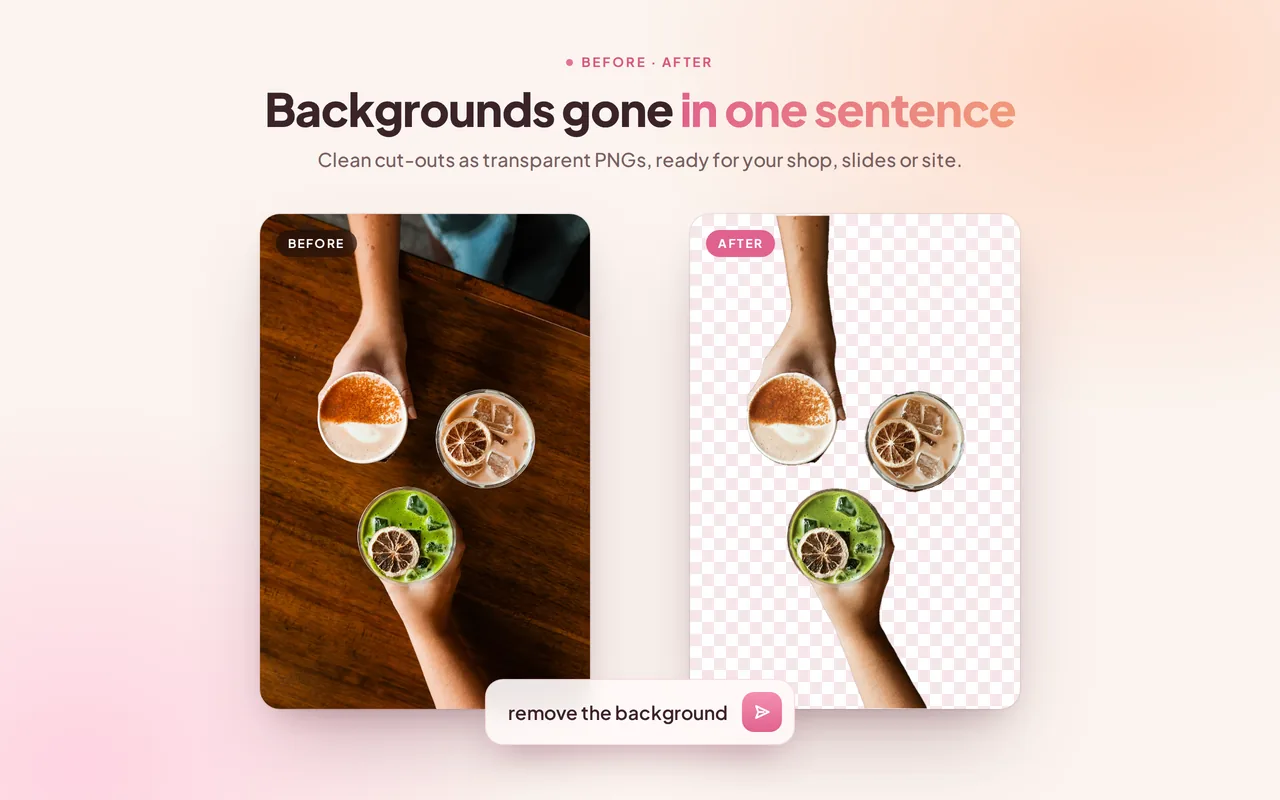
- Remove the background for a transparent PNG, or make the background white for a marketplace listing
- Adjust brightness and clarity
- Strip EXIF metadata, including GPS location
- Add an Ultra HDR gain map to a JPG for HDR displays
- Keep the encode lossless when you ask for it
- Add drop shadows and generated backgrounds (paid plans and the Day Pass)
The extension works on one image at a time. For a batch, drop the files into the web app and describe the result once for all of them.
Save to Google Drive
On the Seller, Pro and Growth plans, the panel gains a Save to Drive toggle. Switch it on and results from either path, Convert to or Send to Mochify, go to your Google Drive instead of your Downloads folder. The extension never talks to Google itself: it uses the Drive connection already on your Mochify account, so it asks for no Google permission of its own.
Free to start
- 3 images a month with no account at all
- 25 images a month with a free account, no card needed
- Paid plans use their normal monthly allowance
- A $2 Day Pass (100 uploads in 24 hours) works in the extension too
Each file you get back counts as one image, so a prompt that asks for three formats uses three. When you reach the limit, the panel tells you and offers a free sign-in. Monthly plans are on the pricing page.
How your images are handled
The image you right-click travels over HTTPS to api.mochify.app, is processed in memory and is wiped as soon as the job finishes. Nothing is written to disk, nothing containing your image is logged, and nothing is used to train AI. That is zero retention. It is not local processing, and we would rather tell you exactly which one it is. Prompt parsing and allowance checks go to id.mochify.app.
The extension asks for access to all websites because that is what lets it fetch the image you right-click on whichever site you are on. It also asks for the context menu, the active tab, scripting (to open the panel on the page) and storage (to remember your sign-in and your Save to Drive setting). It sends nothing until you choose a format or press send. The code is public under the MIT license at github.com/getmochify/mochify-chrome, so you can read exactly what it does with the access it asks for.
Install
- Add it from the Chrome Web Store.
- Right-click any image on any web page.
- Choose Convert to and a format, or Send to Mochify... and describe what you want.
- Optional: click the Mochify icon in the toolbar and sign in for 25 images a month, or to use your paid plan.
Guides
- How to Save a WebP as JPG in Chrome: Every Route That Actually Works - why Chrome hands you WebP, and the fastest ways out, extension or not.
- Save Image as Type Is Gone: How to Replace It Safely - what to check before you trust any right-click image extension, ours included.